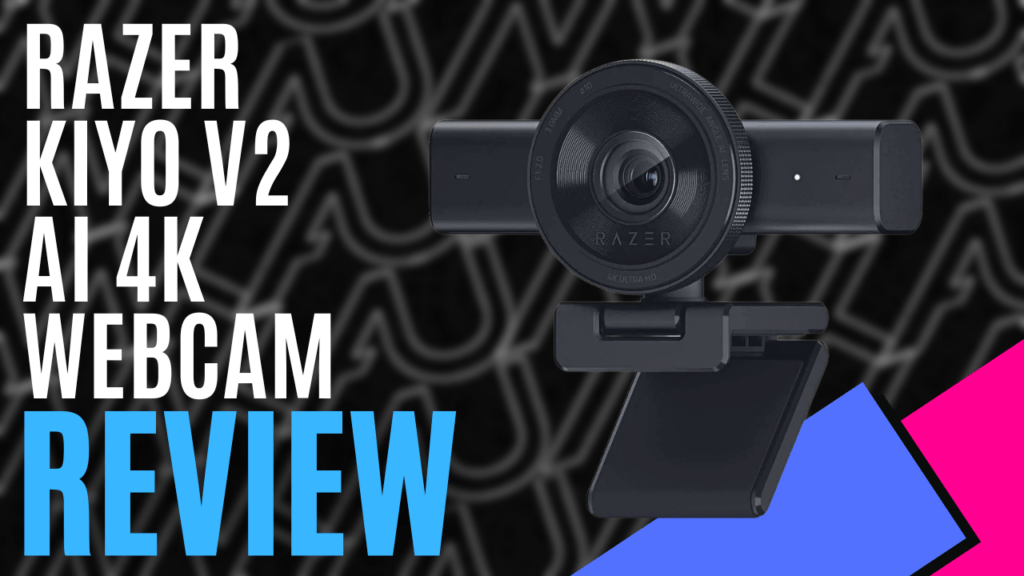
Streaming and webcams have always intrigued me, but setting up the camera, organising the green screen, and then editing seemed like a lot of work – until Razer’s new Kiyo v2 AI webcam for creatorsentered the chat. With Razor stating that their Kiyo v2 captures crystal-clear video in 4K at 30FPS or 1080P at 60FPS, I was lucky enough to be selected to test this one out, so let’s jump in and see how the third generation of the Kiyo name performs.
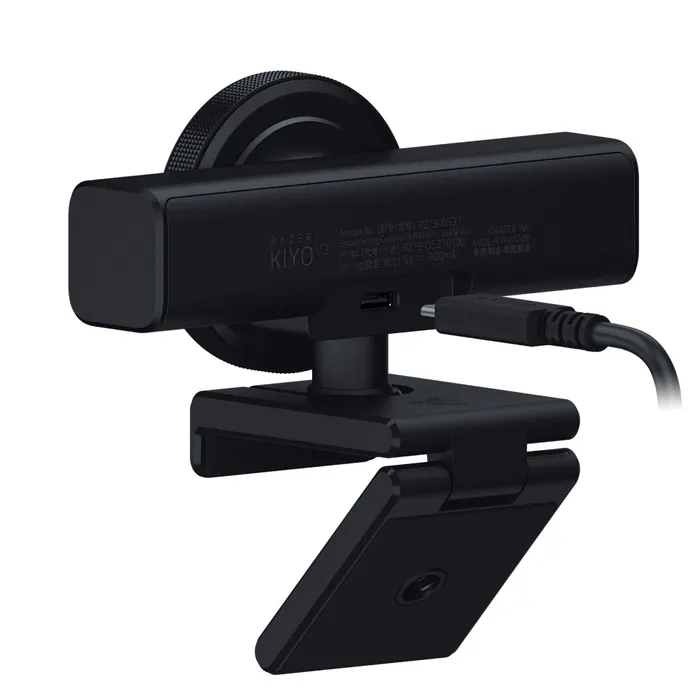
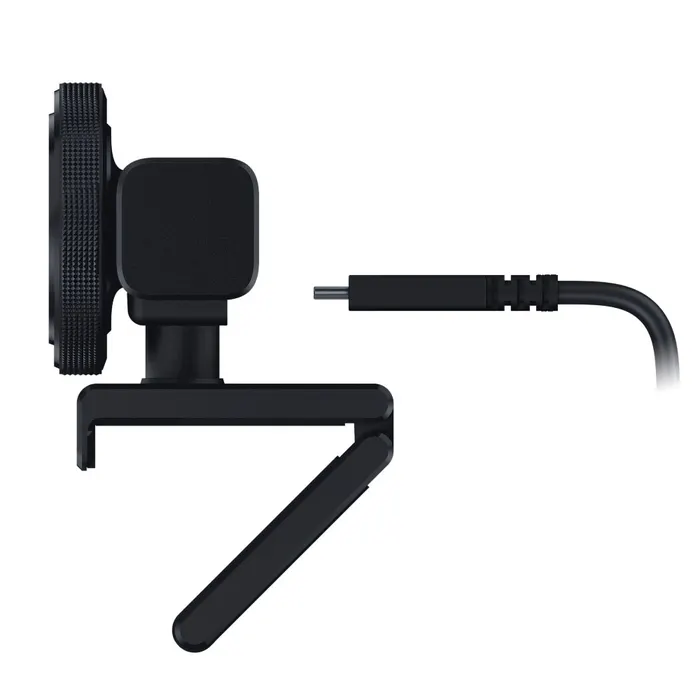
Opening the box, you are greeted by the camera and a 6ft USB-C cable, giving you plenty of room to maneuver around your desk. The camera comes with a universal “L” clip made of metal that feels very solid, and a rubber lining that provides a great grip, making it feel sturdy when I placed it on top of my monitor and helping to avoid scratches.
The camera can also rotate 360 degrees on the mount, as well as laterally up and down, and the bottom of the mount houses a quarter-inch universal thread, so it can be mounted on generic camera stands away from the source if needed or on a tripod, which is handy for streamers.
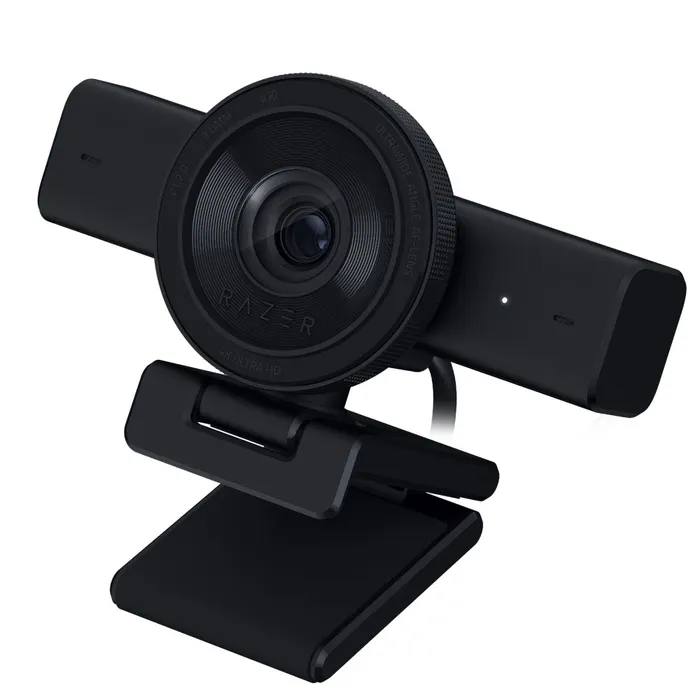
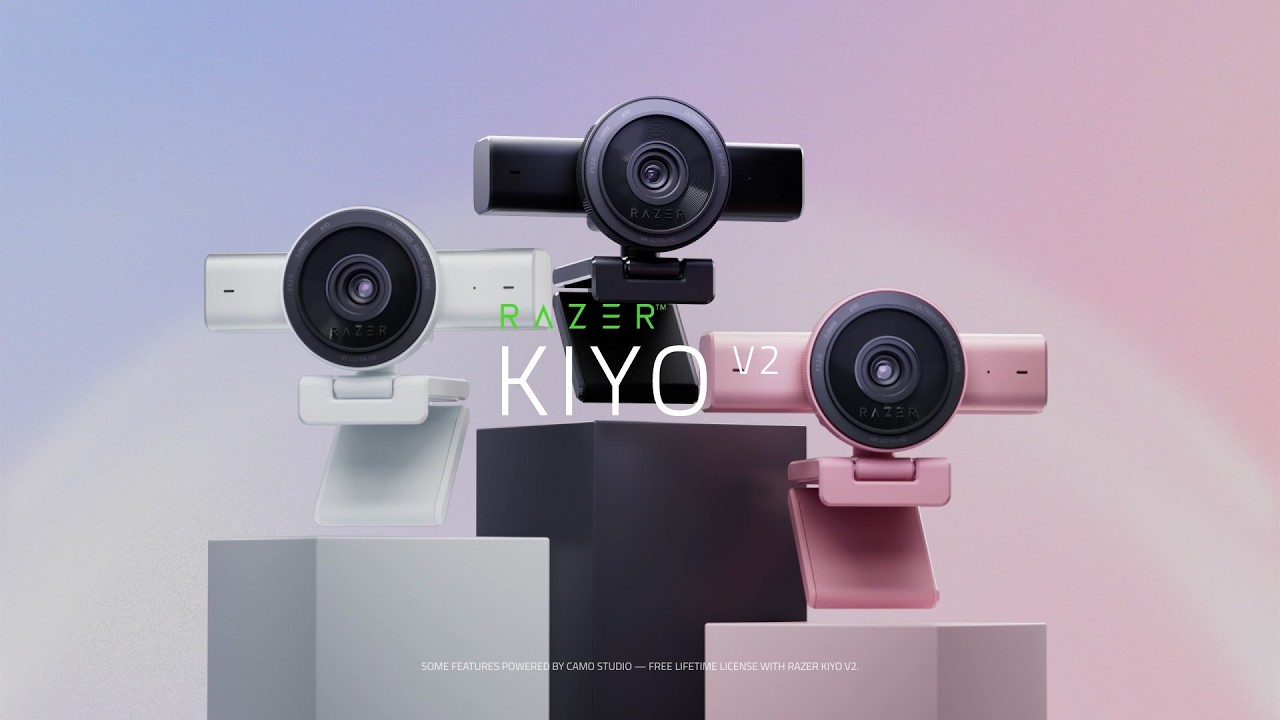
I also used the camera on my laptop for a Zoom meeting, and it sat nicely on top of the small screen, weighing just .25kg. You have three available colours: black, white, or quartz, if you are feeling adventurous.
After a long day at work, my patience was low, but I had that burning urge to stream and test out the camera. I plugged the Kiyo v2 into the USB 3 port, and it loaded up straight away and looked crystal clear. Talk about plug and play.
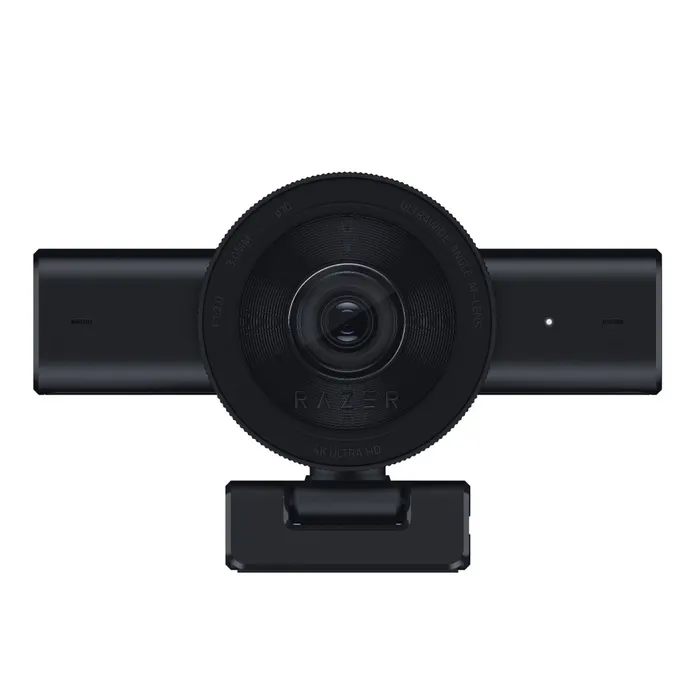
Setting it up in OBS, I was amazed at how wide-angled the camera actually captured from where I was sitting, with the Razer site stating the Kiyo v2 has “Ultrawide angle lens that captures more of your setup without distortion, perfect for creators and streamers”, with a 93-degree field of view.
Since it was getting on in the evening, I turned the lights off and just put on some neon lights in the background to see how the camera performed in a darker environment. Friends helping me set up the stream all commented on how clear it was, even in low light. With the 8.3Mp Sony STARVIS sensor, it is not surprising, as it is renowned for excelling in low light conditions.
As mentioned above, the Kiyo v2 streams 4K resolution, but is limited to 30FPS. If you wanted to stream at 60FPS, you have to downgrade to 1080p. Being aimed at streamers and not video production, this is a minor bump in the road, and the majority of users wouldn’t notice the difference, especially since streaming – you are essentially sitting still and not making large movements.
In addition to the AI built into the camera, you can manually adjust your settings in Camo Studio Pro, which includes a free license. Camo Studio Pro can assist with auto-focusing, auto-framing, background segmentation, one-click enhancement, light balancing, and AI face retouching, which worked wonders on my old face. The AI face retouching reduces visual noise and smooths skin tones, giving you a slider to adjust the amount applied, perfect for those long streaming sessions. As the hours go on, you can turn to the enhancement to polish yourself up and look fresh.
If you want to keep the settings simple, like me, you can also use Razer’s own Synapse software. Synapse gives you the ability to adjust ISO and shutter speed, use AI spotlight or replacement, and access the stream-ready tool suite, to name just a few.
I love Synapse for how you can adjust the HDR from “Bright room” to “Dark room”. It’s perfect if you use the camera for work during the day and stream at night, like me. You can also set up five preset zoom points for key focal points in your streaming area if you sit in a different area for work or play.
Being a parent, privacy is important, and I love how the Razer Kiyo v2 has a twist privacy screen. You twist the outside of the camera, almost as if you’re focusing or zooming, and it closes the shutter. It’s simple, quick, and handy. All the processing and hardware equipment are in the horizontal frame, so it feels like it distributes the camera’s weight across the monitor rather than on other cameras with big, bulky lenses. The horizontal wings also house dual stereo microphones at 48Hz with noise reduction, which top off the aesthetic look and practicality.
I am up to my fifth stream using this camera, and I really cannot fault the Razer Kiyo v2. The Sony STARVIS lens packs a punch in natural light and excels in the dark nighttime environments many streamers find themselves in, which is the market Razer is trying to target. With its modern, sleek appearance, and being packed with all of the features, automatically or through third-party software, it is the perfect camera for streamers or professionals alike.
When you buy a Razer product, you know you are getting a quality product based on decades of experience, and the Razer Kiyo v2 AI 4K Webcam is exactly that: a quality product. Razer has listened to and learnt from the original Kiyo, and in my opinion, have gone on to create the best stream camera on the market in 2026.
Tech Specifications:
- Video Resolution
- 4K 30 FPS
- 1440p 30 FPS
- 1080p 60/ 30/ 24 FPS
- 720p 60/ 30 FPS
- Video Formats
- MJPEG up to 4K 30 FPS, 1080p 60 FPS
- YUY2 up to 4K 15 FPS, 1080p 60 FPS
- NV12 up to 4K 20 FPS, 1080p 60 FPS
- Image Sensor
- 8.3 MP Sony STARVIS™ Sensor
- Field of View
- 93° (wide angle, configurable)
- Focus Type
- Auto / Manual
- Focal Length
- 3.0 mm (20 mm for full format equivalent)
- HDR Support
- Yes (at 30 FPS)
- Image Quality Settings Customization
- Fine image customization with Razer Synapse software
- Mounting Options
- Fixed L-shape mount (with ¼” thread to mount on tripods)
- Built-in Privacy Shutter
- Yes
- Connection type
- USB Type C to USB Type C (Supporting USB 3.0)
- Cable Length
- 2 m / 6.56 ft
- Built-In Microphone Type
- Stereo Microphone
- Polar Patterns
- Omni-directional
- Noise Cancellation
- Yes
- Audio Codec
- 16 bit/ 48 kHz
- What’s Inside
- Razer Kiyo V2
- 2 m / 6.56 ft USB Type C to USB Type C Cable
The Good
- Plug and play setup
- Solid construction and various mounting options
- Low light performance
- Multiple suites of programs to adjust settings to your preference
- Streamers in mind for most AI functions
The Bad
- 60FPS you have to downgrade to 1080p






 SuBZeRO2K
 Spotify
 Anchor
 iTunes