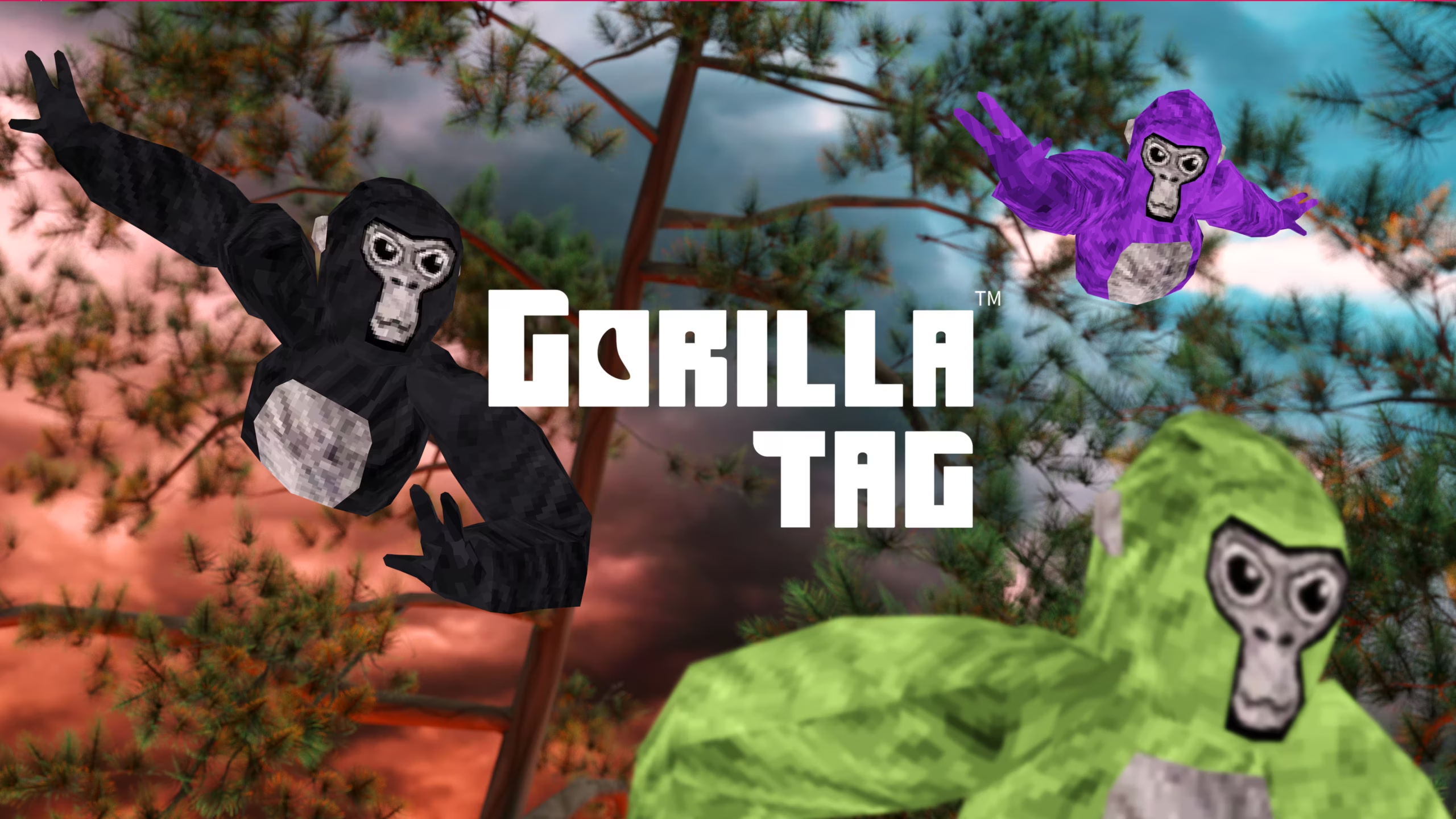
Gorilla Tag already offers an unusual VR experience, but its active modding community has expanded the game far beyond its standard maps and modes. PC players can use mods to add custom environments, interface improvements, visual effects, recording tools, private-room game modes, and other experimental features.
One of the simplest ways to set up PC mods is Monke Mod Manager, a community-developed program that installs the necessary mod loader and supported plugins automatically. However, mods are not officially endorsed by Gorilla Tag developer Another Axiom, so players use mods at their own risk.
What Is Gorilla Tag?
Gorilla Tag is a multiplayer VR game built around arm-based movement. Instead of walking with an analog stick, players move by pushing against surfaces with their virtual hands. This system is used for running, climbing, jumping, escaping other players, and chasing opponents through the game’s environments.
The PC version supports both SteamVR and Oculus PC VR modes, depending on the headset and runtime being used.
Although its basic rules are easy to understand, Gorilla Tag has a relatively high movement skill ceiling. Players learn techniques for climbing walls, changing direction quickly, jumping between surfaces, and maintaining speed. Mods can build on this foundation by adding new places to explore or tools that change how the game looks and functions.
What Types of Gorilla Tag Mods Are Available?
Gorilla Tag mods generally fall into several categories. Availability and compatibility can change whenever the game is updated, so not every older mod will work with the current version.
Cosmetic and Visual Mods
Cosmetic mods change how the game looks without necessarily changing its core rules. Depending on the mod, they may add custom holdable items, locally displayed accessories, hats, visual effects, materials, or interface themes.
Some visual mods are client-side, which means only the player running the mod can see the changes. Others may interact with multiplayer systems and should only be used in environments where modding is permitted.
Custom cosmetics installed through mods are separate from official Gorilla Tag cosmetics and purchases.
Interface and Utility Mods
Utility mods add information or controls that are not included in the standard interface. Examples may include additional computer menus, configurable settings, camera controls, spectator tools, recording features, or improved mod management.
Some utility plugins also serve as dependencies for other mods. A dependency is a library that another plugin needs before it can work.
Custom Maps
Custom map loaders allow players to visit community-created environments. These may include obstacle courses, parkour challenges, recreations of familiar locations, minigame arenas, or entirely original worlds.
The traditional Monke Map Loader, for example, uses BepInEx and several supporting dependencies. Its map files use the .gtmap format and are placed in a dedicated CustomMaps directory.
Players should note that Gorilla Tag also has a newer official custom-map system. This is separate from older PC plugins such as Monke Map Loader.
Custom Modes and Gameplay Mods
Some mods introduce new private-room activities or alter movement, physics, interactions, and objectives. These can make Gorilla Tag feel like a different game, especially when a group of friends installs compatible plugins.
Utilla is a commonly used PC library for room-related mod functionality. It allows developers to restrict their plugins to designated modded game modes rather than enabling them everywhere.
Cheats and Disruptive Mods (aka Mod Menus)
Players may also encounter mod menus that advertise features such as impossible movement, forced interactions, player manipulation, trolling tools, or advantages over unmodified players.
These should not be treated like ordinary quality-of-life mods. Another Axiom’s policy prohibits creating hacks, and disruptive modifications may lead to reports, account penalties, malware infections, or other problems.
But players download them and wreak havoc in lobbies anyway.
How to Install Gorilla Tag Mods with Monke Mod Manager
Monke Mod Manager simplifies the installation process by placing the mod loader, dependencies, and selected plugins in the correct Gorilla Tag directories. The exact appearance of the program may differ between community versions, but the general process remains similar.
Step 1: Install and Launch Gorilla Tag Normally
Make sure the PC version of Gorilla Tag is installed and updated.
Launch the unmodified game once before installing anything. After reaching the main game area, close Gorilla Tag completely. This confirms that the basic installation works and allows the game to create any required files.
Steam users can find the installation folder by opening the Steam Library, right-clicking Gorilla Tag, selecting Properties, opening Installed Files, and choosing Browse.
A common default location is:
C:\Program Files (x86)\Steam\steamapps\common\Gorilla Tag
Players who use another Steam library will have a different path.
Step 2: Find a Trusted Monke Mod Manager Release
Monke Mod Manager is an open-source community project rather than an official Gorilla Tag application. Several versions, forks, and repackaged downloads exist online.
The original manager was designed to install Gorilla Tag PC mods automatically and retrieve supported releases through GitHub. Newer community builds may also offer mod disabling, configuration editing, installation from local files, and automatic dependency management.
Only download the manager from a recognized Gorilla Tag modding community gorilla-tag-mods.com or a transparent GitHub repository with visible source code and release history. Avoid websites that repackage the executable, shorten the download link, require an unrelated installer, or advertise cheat menus alongside the manager.
Because individual Monke Mod Manager repositories may become inactive or archived, check the release date and recent community announcements instead of relying on an old tutorial’s version number. One community repository that released an updated build in June 2026 was archived on July 19, 2026, illustrating how quickly the recommended download can change.
Step 3: Close Gorilla Tag and Run the Manager
Gorilla Tag should not be running while its files are being modified.
Open the downloaded Monke Mod Manager executable. Depending on the build and Windows security settings, the operating system may display a warning because the application comes from an independent developer.
Step 4: Select the Gorilla Tag Folder
The manager will usually attempt to detect the Gorilla Tag installation automatically.
Check the displayed path before continuing. It should point to the main folder containing the Gorilla Tag executable and the Gorilla Tag_Data directory.
When the path is incorrect, use the manager’s browse button and manually select the game folder. Do not select the plugins, Gorilla Tag_Data, or Steam library folder by itself – the manager needs the main Gorilla Tag directory.
Step 5: Install the Mod Loader and Dependencies
Most traditional Gorilla Tag PC plugins use BepInEx. BepInEx is a plugin framework for Unity games that loads compatible .dll modifications when the game starts.
Select BepInEx or the recommended current loader in Monke Mod Manager. Depending on the mods you plan to use, the manager may also offer dependencies such as:
- Utilla;
- Computer Interface;
- configuration libraries;
- dependency-injection libraries;
- JSON libraries.
Do not select every available item simply because it appears in the list. Start with the loader and the dependencies required by the mods you actually want.
Some managers select dependencies automatically when a mod requires them.
Step 6: Choose Your Mods
Review the available plugins and select the ones you want to install.
A beginner should start with one or two simple mods rather than installing an entire list. This makes it much easier to identify the cause if the game fails to launch or a plugin does not work.
Read each mod’s description and check:
- what the mod changes;
- whether it works with the current Gorilla Tag version;
- whether it requires other plugins;
- whether it is intended for general or modded rooms;
- which controls open its menu;
- whether other players need the same mod.
Avoid plugins that weren’t updated for a long time.
Step 7: Click Install or Update
After selecting the loader, dependencies, and mods, click the manager’s Install, Install/Update, or similarly named button (this depends on a version of downloaded).
The manager should download the required files and place them in the Gorilla Tag directory. A successful BepInEx setup will normally create a structure that includes:
Gorilla Tag\BepInEx\plugins
This is where standard BepInEx plugin files are usually stored.
Wait until the installation process finishes before closing the manager.
Step 8: Launch Gorilla Tag
Start Gorilla Tag through Steam or your normal PCVR launcher.
The first modded launch may take slightly longer because the loader creates folders, configuration files, or logs. Once the game has opened, check whether the selected mod appears in its expected interface or menu.
Some plugins do not display anything on the initial screen. They may activate only after entering a particular room, pressing a configured button, opening the in-game computer, or joining a modded game mode.
How to Install Additional Mods Manually
Not every plugin is included in Monke Mod Manager. Additional BepInEx mods can often be installed manually.
First, read the instructions supplied by the mod developer. Do not assume that every archive has the same folder structure.
For a basic BepInEx plugin, the process is usually:
- Download the mod from its developer’s GitHub release page or gorilla-tag-mods.com.
- Extract the downloaded ZIP archive.
- Open Gorilla Tag\BepInEx\plugins.
- Copy the files to the location specified by the developer.
- Restart Gorilla Tag.
Custom maps use a different location. For the traditional Monke Map Loader, .gtmap files are placed in:
Gorilla Tag\BepInEx\plugins\MonkeMapLoader\CustomMaps
Tips for Using Gorilla Tag Mods
Use Mods in the Intended Rooms
Gameplay-changing mods should be restricted to private rooms, custom modes, or other environments specifically intended for modded play.
Utilla-compatible plugins can be designed to activate only in modded game modes, helping prevent them from affecting ordinary matches. Nevertheless, players remain responsible for what they install and how they use it.
Install One Mod at a Time
Add a single plugin, launch the game, and check that everything works before installing another. When a crash begins immediately after adding a mod, remove that mod first.
This method is slower than installing a large collection at once, but troubleshooting becomes much easier.
Expect Mods to Break After Updates
Gorilla Tag updates can change internal game code. As a result, a previously working plugin may stop loading, display errors, or cause the game to crash.
After a game update, check for new versions of BepInEx dependencies and individual mods. Reopen Monke Mod Manager and use its update function when available.
Never download a supposed “update fix” from an unknown user simply because a familiar mod has temporarily stopped working.
Keep Backup Copies of Configurations
Many plugins create configuration files inside:
Gorilla Tag\BepInEx\config
Back up this folder before reinstalling the loader or removing all mods, especially when you have spent time adjusting controls and settings.
How to Remove Mods or Restore the Original Game
Use Monke Mod Manager’s uninstall or disable feature when it is available. Some newer managers allow individual mods to be disabled without deleting their files.
For a single manually installed plugin, close the game and remove the corresponding .dll and its associated folder from BepInEx\plugins.
When Gorilla Tag no longer launches:
- Remove the most recently installed mod.
- Confirm that all required dependencies are present.
- Update the loader and plugins.
- Temporarily move the contents of BepInEx\plugins to another folder.
- Launch the game again to identify whether a plugin is causing the problem.
To return to a fully unmodified installation, use the manager’s removal function or delete the third-party loader files, and then verify the integrity of Gorilla Tag through Steam.


 SuBZeRO2K
 Spotify
 Anchor
 iTunes